Windows

Characters in Midnight commander via Putty from Windows 8
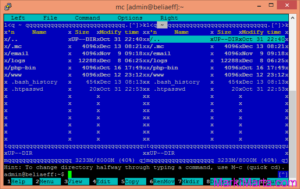
Midnight Commander with unreadable characters

When I first started Putty on my Windows 8.1 x64, connected to my server and ran Midnight Commander, I saw picture like this (see drawing 1). Instead of separating lines there were unreadable characters. It wasn’t what I expected to see and the first thing came in my mind is to fix it.  Read more»

Windows

Find out memory configuration in Windows using PowerShell

Once I need to install more memory on my server. The server was installed long ago and nobody knows what memory is installed there and whether there are free slots for memory. Read more»

Windows

How to add PowerShell ISE from PowerShell

Today I wanted to execute PowerShell ISE on one of SharePoint Server, but I couldn’t find it. I searched for it but on this server I haven’t installed it. I have already forgotten how to add PowerShell ISE to Windows Server 2008R2. It’s not included in default settings because PowerShell ISE is not necessary for […] Read more»

SharePoint Windows

Uninstall Visual Studio 2010 automatically

With coming up Visual studio 2012 finally I decided to try it. But first I need to uninstall Visual Studio 2010. When I entered Control Panel -> Programs and Features I saw a lot of products that have been installed with VS 2010. It was hard to think about uninstalling each element manually.  Read more»

Windows

Missed buttons Design, Split and Code in Visual Studio 2010

Turn on HTML designer in Visual Studio 2010

If your buttons Design, Split and Code in Visual Studio 2010 are missed but you need them, you should go to Tools->Options->HTML Designer->General, check “Enable HTML Designer” and restart studio. Read more»

Windows

How to disable Java (32-bits) updates on Windows 7 x64

To disable Java updates I tried to make it in common way – I have opened Control panel, selected Java (32-bit), in tab “Update” checked off “Check for Updates Automatically” and pressed Ok. But when I opened it again, this value was again “On” (Drawing 1). Read more»

Windows

Popular Posts