Microsoft Office

The Implementation of STDEV for values from 3 columns in the table

Standard deviation is the degree of dispersion or the scatter of the data points relative to its mean, in descriptive statistics. It’s often used in data analysis and reports. And, of course, how to calculate Standard deviation in PowerBI is very important to know. Read more»

Microsoft Office

Parse CSV in Microsoft Flow (PowerAutomate)

I parsed the CSV file. The lines are separated by ‘\r\n’. If in Flow you use split(text, ‘\r\n’), it doesn’t work as you’d like to. Instead use function decideUriComponent and respective values: \r – %0D, \n – %0A Read more»

Microsoft Office

Get the Quarter of the Year in PowerBI

There are 2 languages in PowerBI – M and DAX. M is for data loading and DAX is for further data transformation. Read more»

Microsoft Office

PowerBi. Concatenate table rows in one string

If you want to make a string of values in Power BI, you can use the formula like this. It will join all the values, which correspond to the condition, in one line. Read more»

Microsoft Office

Iterate table columns in PowerBI data transformation

PowerBI applies a lot of functions automatically or you can make them manually. But if you work with a dynamically changed data, for example, when new columns are added in SharePoint list, and you don’t want to add them manually every month (week, year, etc), you can automatically iterate through them. Read more»

Microsoft Office

PowerBI. Add the arrows UP and DOWN

To add the arrows UP and DOWN for a visualization of data changes in Power BI report, you can use this DAX function. It can help you to make a table more descriptive. Read more»

Microsoft Office

Write Number as it is in Microsoft Power BI Desktop widget

In Microsoft Power BI Desktop it’s not obviously how to write a Number as it is without modifications like to write ‘2k’ instead of ‘2023’. Truth be told, it took me approximately 5 minutes to do it. Read more»

Microsoft Office

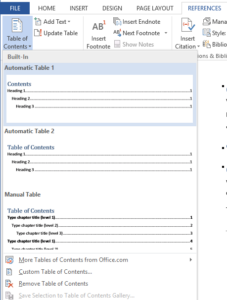
Create Table of Contents in Microsoft Word

Figure 1. Create automatically a Table of Contents in Microsoft Word

Word allows you to create a Table of Contents automatically. It searches headings in your document and creates contents according to them. Headings must be set via headings styles in tab “Home”. Read more»

Microsoft Office

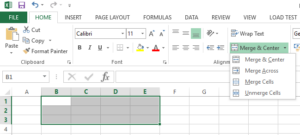
How to merge Excel cells

Figure 3. Merge cells in Excel

You can merge Excel cells in 3 simple steps: Select a range of cells. Right click on the selected cells and then choose Format Cells (Figure 1) Go to the Alignment tab and check the checkbox “Merge cells” (Figure 2).   The other way to merge cells in Excel is via Excel Ribbon. This way […] Read more»

Microsoft Office

Popular Posts