
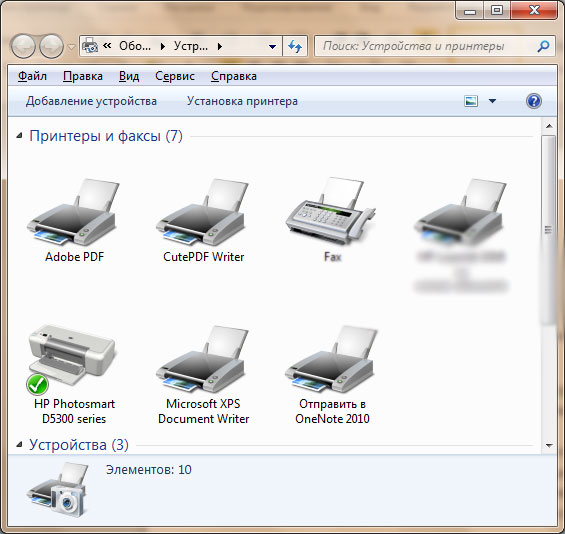
If you see the message “Please wait for printer connection or cancel” when trying to print in Windows 11, Windows is usually attempting to select what it thinks is the most suitable printer automatically. This often happens when you use network printers.
The problem is that Windows may choose a different printer than your preferred one, and the process can take a surprisingly long time. If you only want to print a few pages, waiting several minutes for Windows to find a printer can be frustrating.
How to Fix It
- Close the print dialog displaying the message.
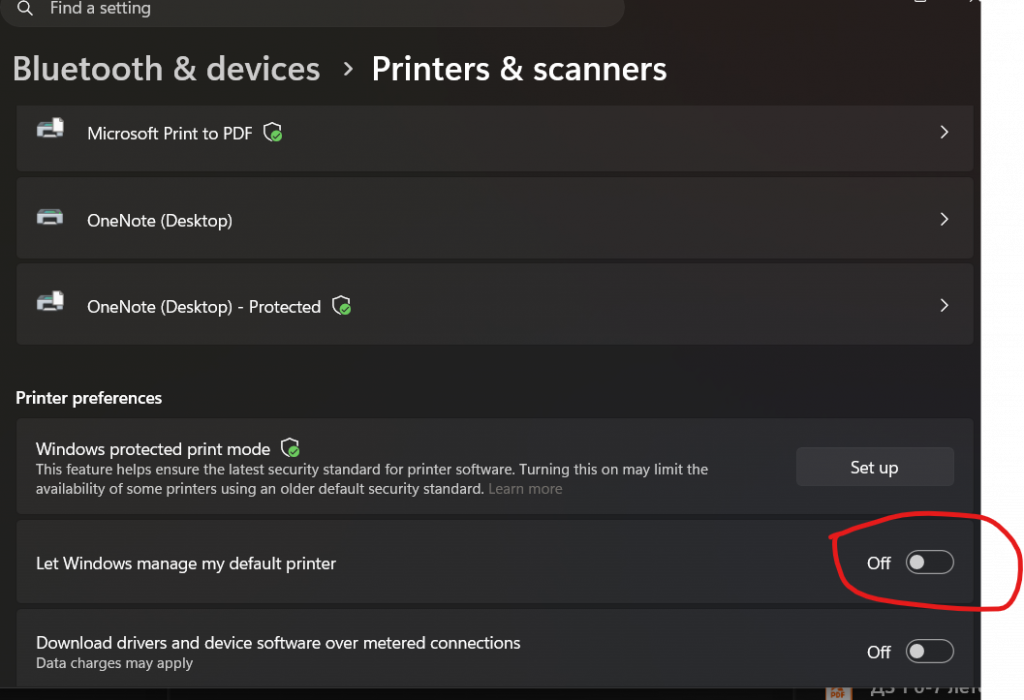
- Open Settings and go to Printers & scanners.
- You can press Windows + S, type Printers, and select Printers & scanners.
- Find the option Let Windows manage my default printer.
- Turn this setting Off.
Result
After disabling this option, the print dialog should open immediately when you press Ctrl + P, without waiting for Windows to search for and select a printer automatically.
This simple change can save time and make printing much more responsive, especially if you regularly use network printers. And this setting makes often your default printer setting useless.